Your thumbnail, your ad cut, your product photo, your storyboard clip — the visual stuff shouldn’t live in a downloads folder you forget. In Vexlynk, images and videos are cards on the board, sitting next to the script, the numbers, or the plan they belong to.
How to add an image or video card
- Open the left rail and choose Media → Image, Video, or Link.
- Drop it on the board and attach your file.
- Give it a caption so it’s clear at a glance what it is and why it’s there.
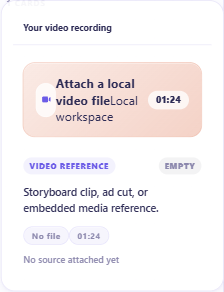
Desktop and web: where your media lives
Media cards are built for the desktop app today. Because Vexlynk is local-first, the image, video, or audio file you attach stays on your machine — it never uploads to anyone’s cloud unless you choose to. Your files are yours.
On the web workspace, media works too, in the way a browser allows: drop an image onto the board and it uploads to private cloud storage (only you can open it; up to 5 MB per image, with 25 MB of total storage on Free, 500 MB on Plus and 2 GB on Pro), and for video and audio you add a Video or Audio card and paste a link — YouTube or Vimeo for video, SoundCloud or Spotify for audio — and it plays right on the card. Local video and audio files stay a desktop action, because a browser can’t reach your disk.
What else you can do
- Edit without leaving. On desktop, right-click an image to open it in Vexlynk’s built-in image editor, or a video to open it in the video editor extension — no round-trip to another app.
- Keep assets in context. The storyboard clip sits next to the script. The thumbnail sits next to the analytics. The product shot sits next to the launch plan.
One honest note about the agent and your images
Here’s the straight version, because we’d rather you trust us than be surprised: the agent knows a media card is there and reads its title and caption — but it does not look at the pixels. It won’t describe a photo it hasn’t been told about. So caption your media clearly, and the agent can reason about it by name (“the Q4 thumbnail,” “the demo cut”) even though it isn’t looking at the image itself.
Frequently asked questions
Does this work in the web workspace?
Yes. In the web workspace you can drop an image to upload it, and paste a YouTube, Vimeo, SoundCloud or Spotify link into a Video or Audio card to embed it. Attaching local video and audio files needs the desktop app, where those files stay on your machine (local-first).
Can the agent see what’s inside my photos or videos?
Not the pixels — it reads the card’s title and caption, not the image or footage itself. A clear caption lets the agent reason about the asset by name.
What kinds of media can I add?
On desktop: images, video, and audio from your own files, plus general file uploads and links. On web: uploaded images, YouTube and Vimeo videos, SoundCloud and Spotify audio, and links.
Vexlynk
Vexlynk Team